Smart routing for Iran
Many Iranian websites — banks, government services, online shops — won't open from a foreign address, and they load faster without the detour. Smart routing sends them direct, outside the VPN, and keeps everything else protected.
Narrated walk-through with the same screenshots.
Step by step
- iPhone, iPad and Mac: country rules1
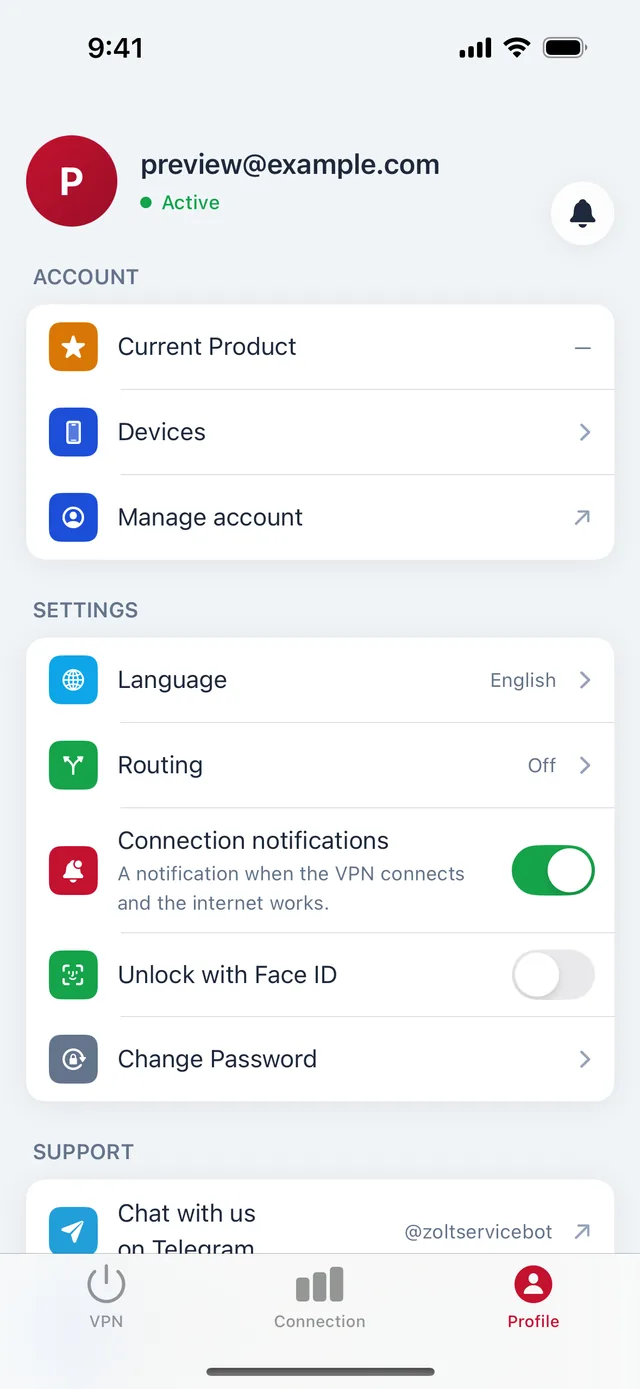
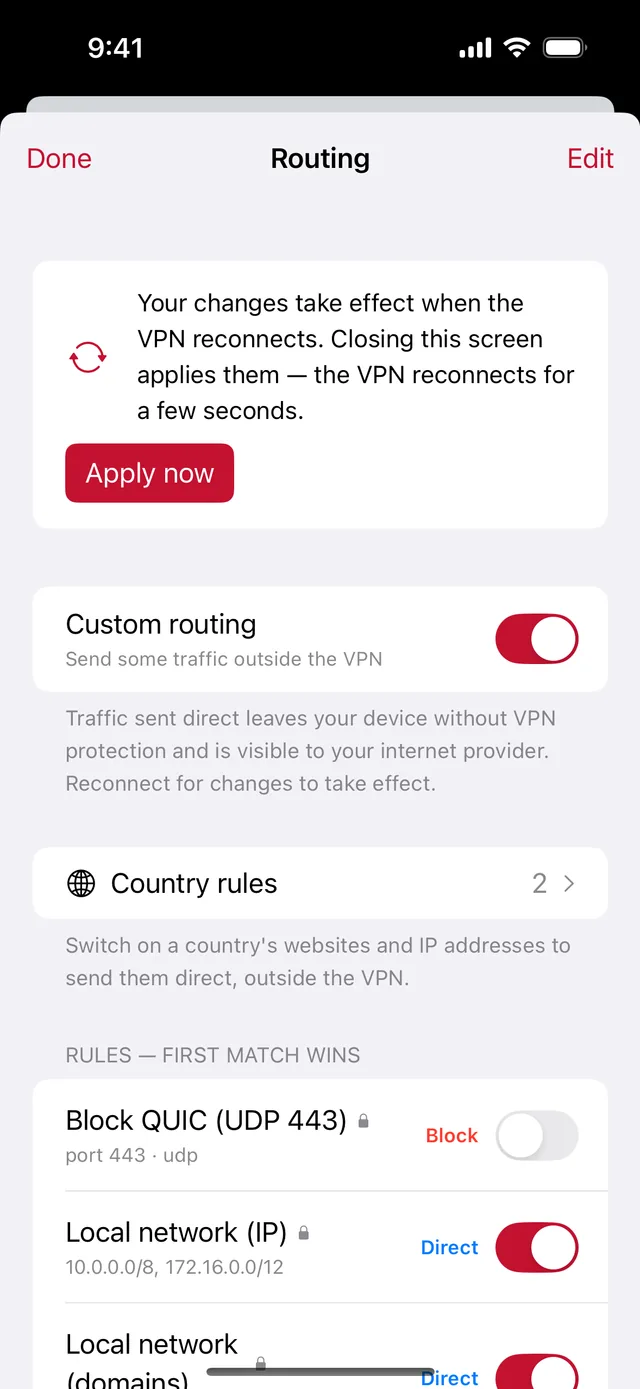
Open Profile → Routing
In the app, go to the Profile tab and tap Routing.
- 2
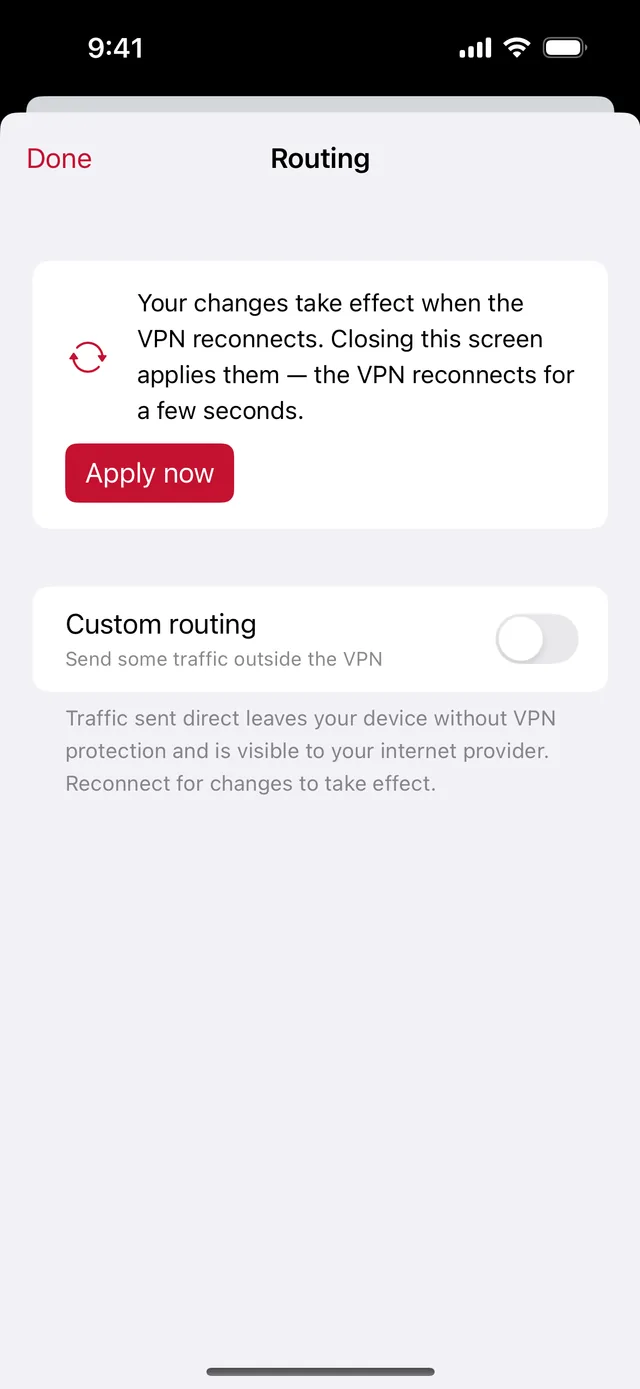
Turn on Custom routing
Switch on Custom routing.
- 3
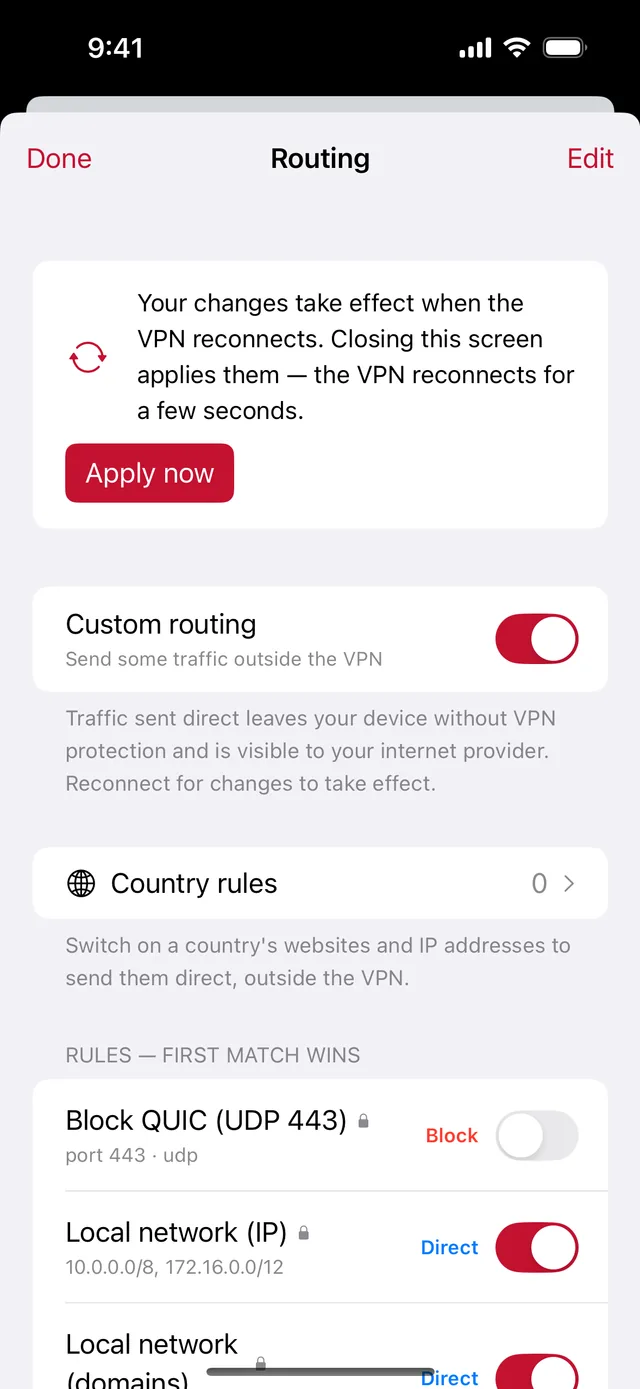
Tap “Country rules”
This opens the list of countries.
- 4
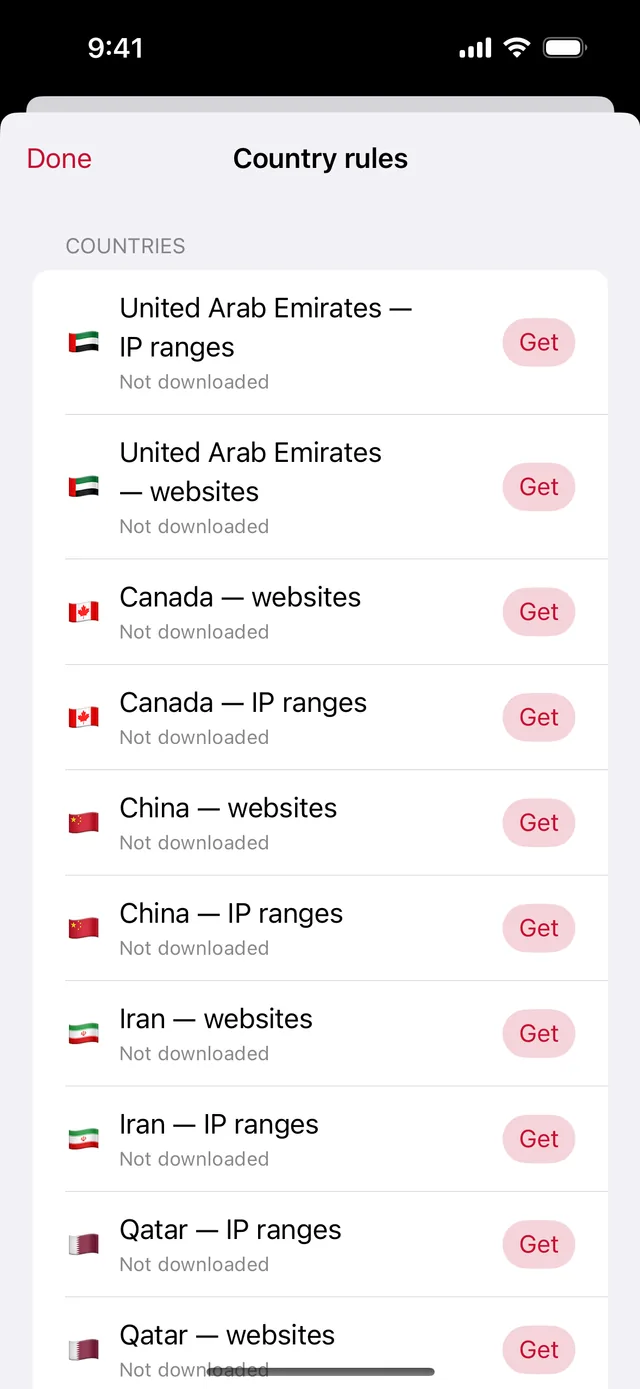
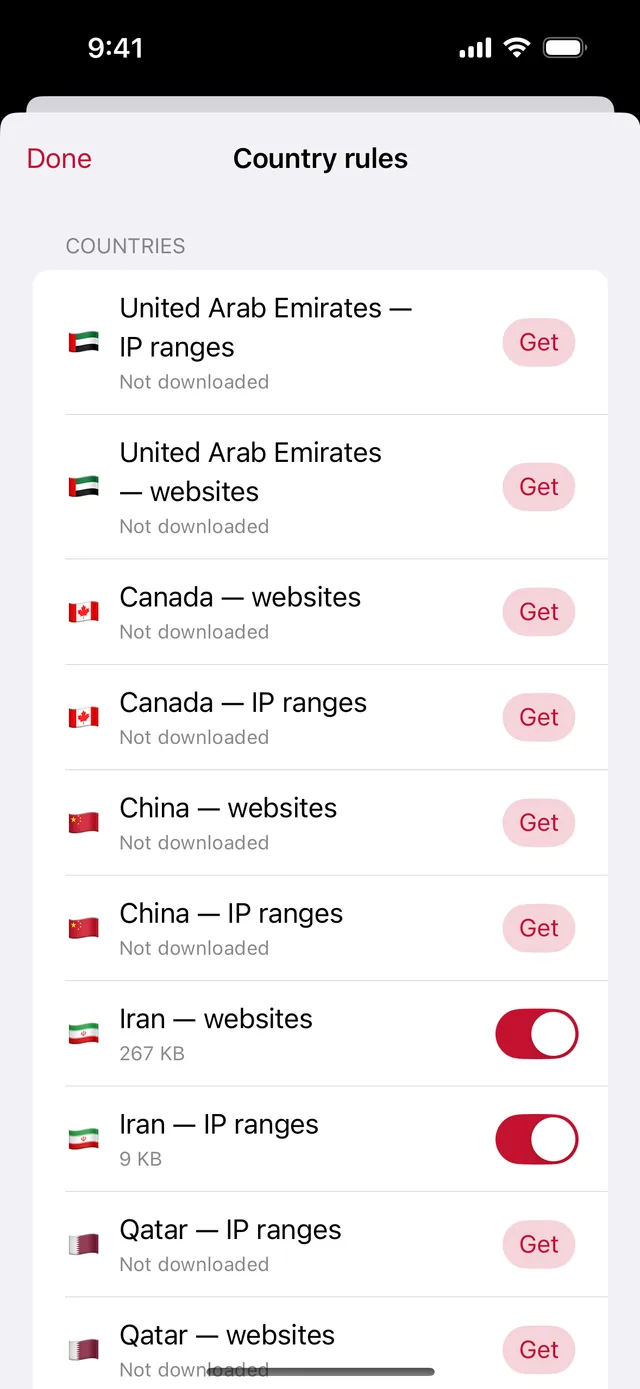
Get the two Iran lists
Tap Get next to Iran — websites and Iran — IP ranges. Each one downloads once and stays on your device.
- 5
Switch both on, then tap Done
With both switched on, Iranian websites and Iranian IP addresses go direct.
- 6
Tap “Apply now”
If you're connected, tap Apply now — the VPN reconnects for a few seconds. If you're not, the rules apply the next time you connect.
- Android: per-app routing1
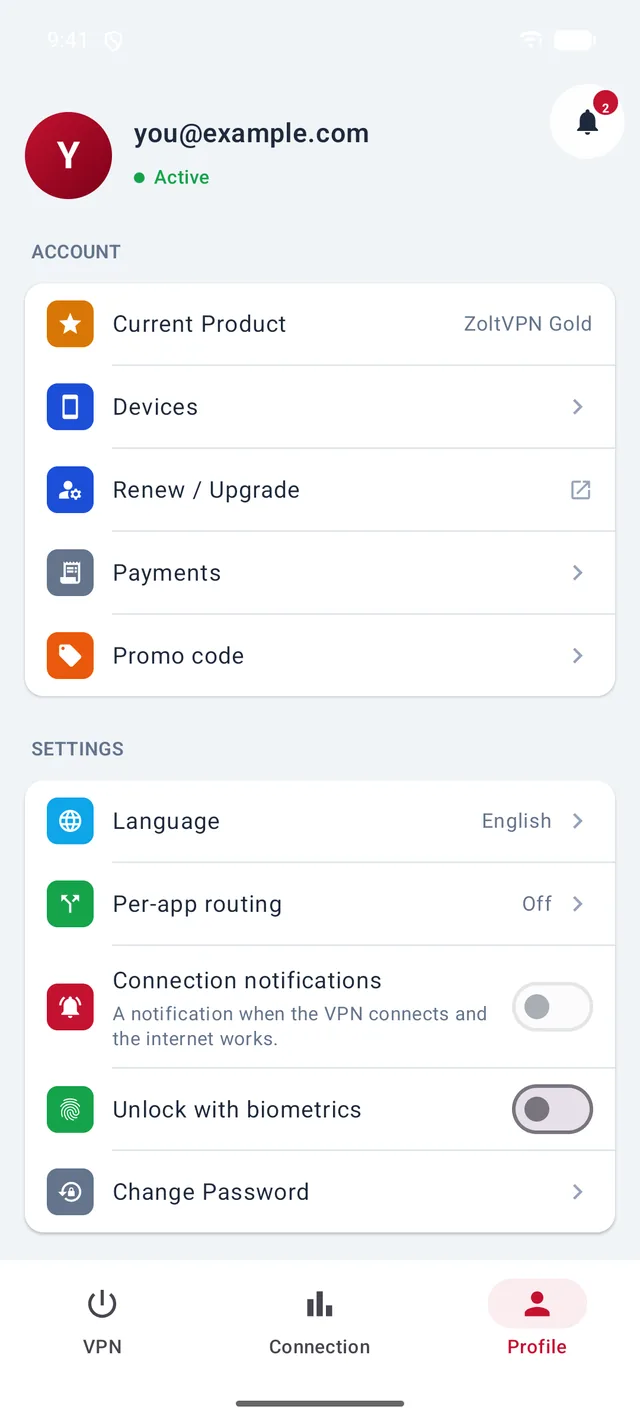
Open Profile → Per-app routing
On Android you choose by app, not by website.
- 2
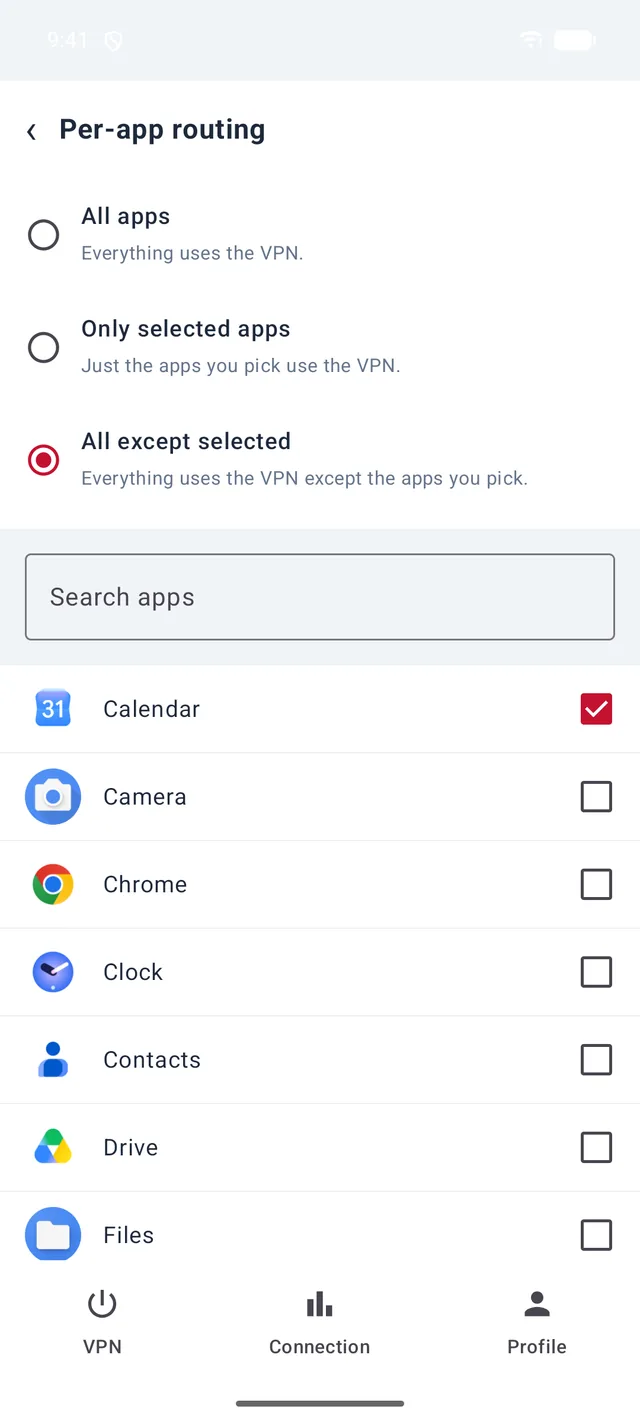
Choose “All except selected” and tick the apps
Tick the apps that should go direct — for example your Iranian banking or shopping apps. Everything else keeps using the VPN.
- Windows1
Not on Windows yet
The Windows app doesn't have smart routing yet: everything goes through the VPN. If an Iranian site won't open from a foreign address, disconnect for a moment while you use it.
More guides
Still stuck?
Write to us on Telegram — our assistant answers day and night and passes anything it can't solve to our team.