Add a device to your plan
Your plan covers more than one device. Here's how to add one — say, a family member's phone — with a code. They don't need an account.
Narrated walk-through with the same screenshots.
Step by step
Screenshots from the Android app. iPhone, iPad, Mac and Windows look very similar.
- 1
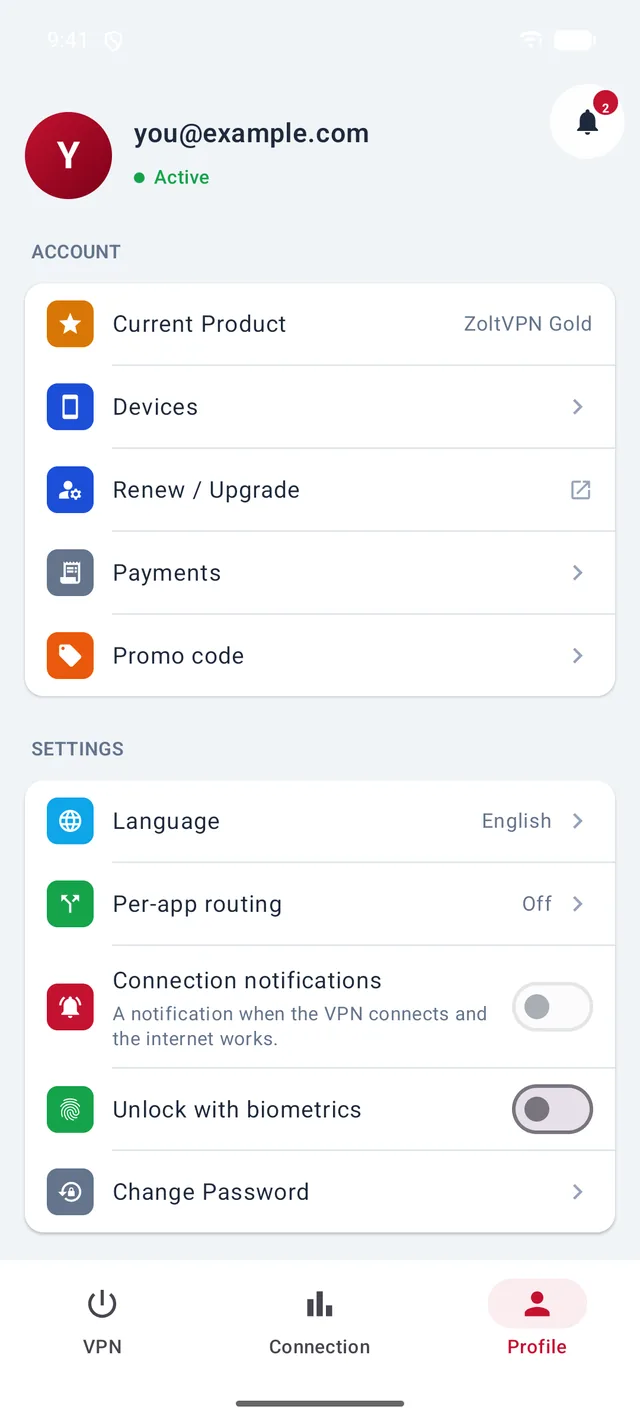
Open Profile → Devices
In the Profile tab, tap Devices.
- 2
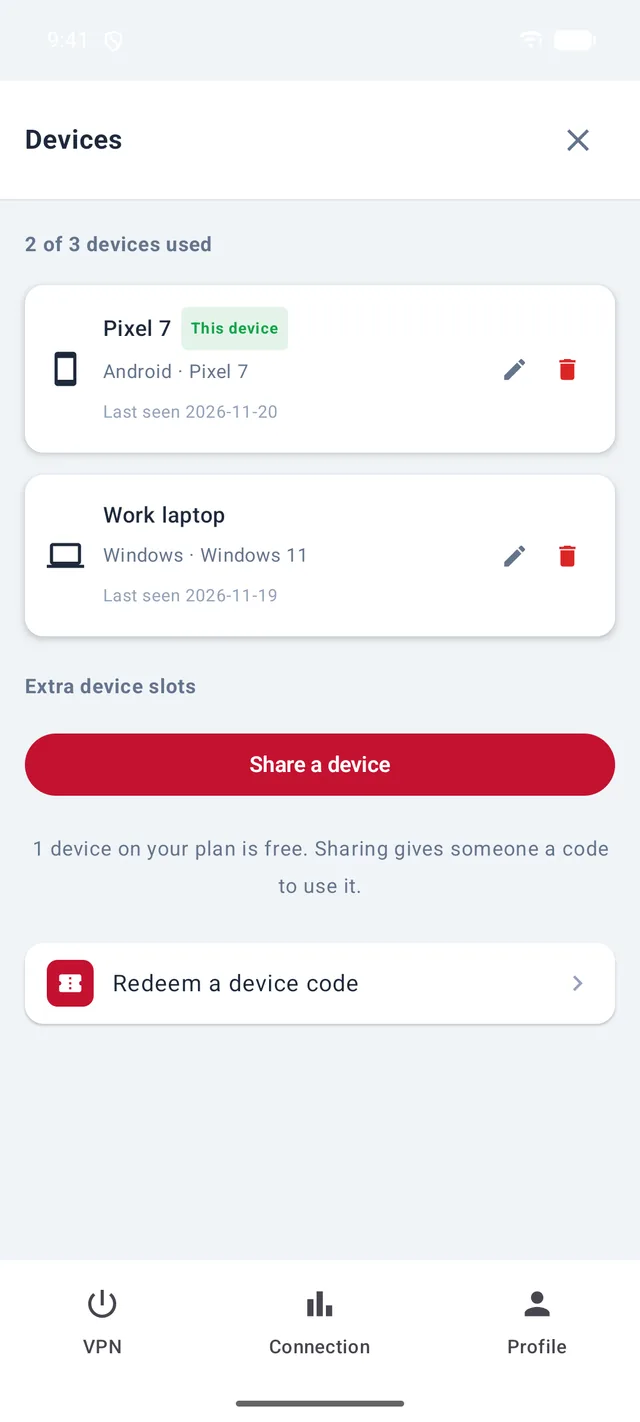
Tap “Share a device”
At the top you can see how many devices you're using — here, 2 of 3. While a place is free, tap Share a device.
- 3
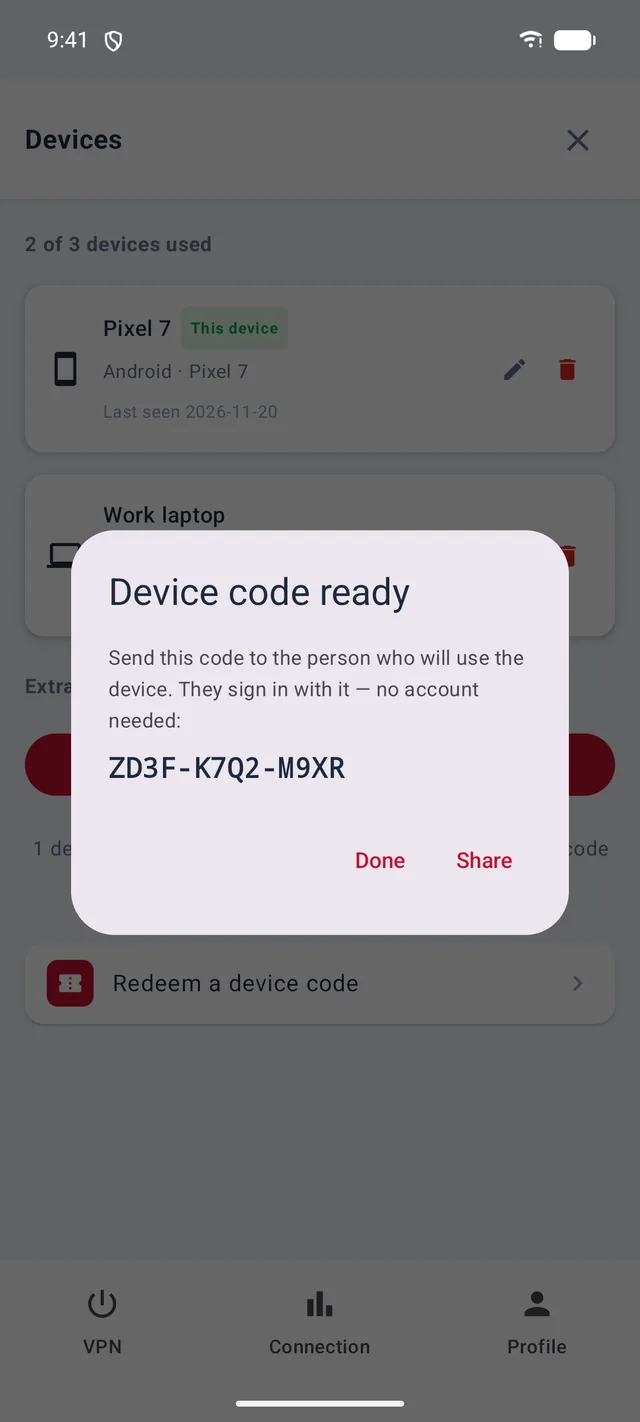
Send the code
Your device code appears. Tap Share to send it by Telegram, WhatsApp or email — whichever you like.
- 4
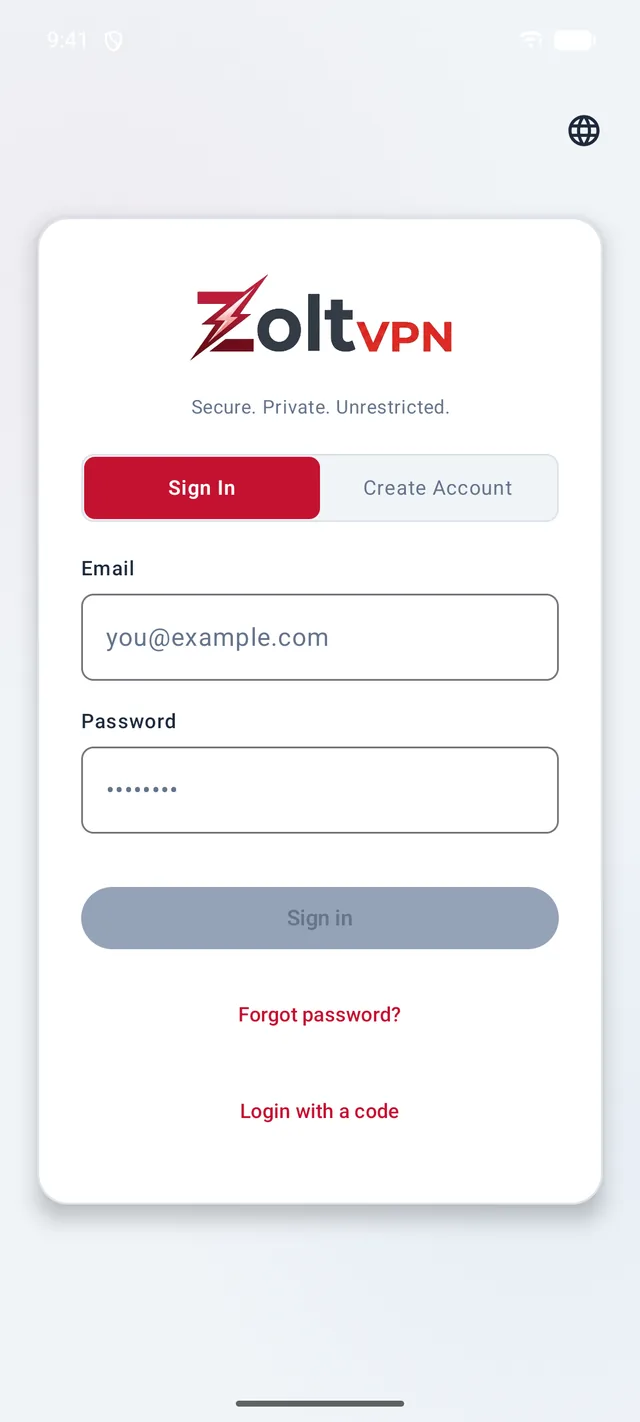
On the new device: “Login with a code”
Install ZoltVPN on the new device and tap Login with a code.
- 5
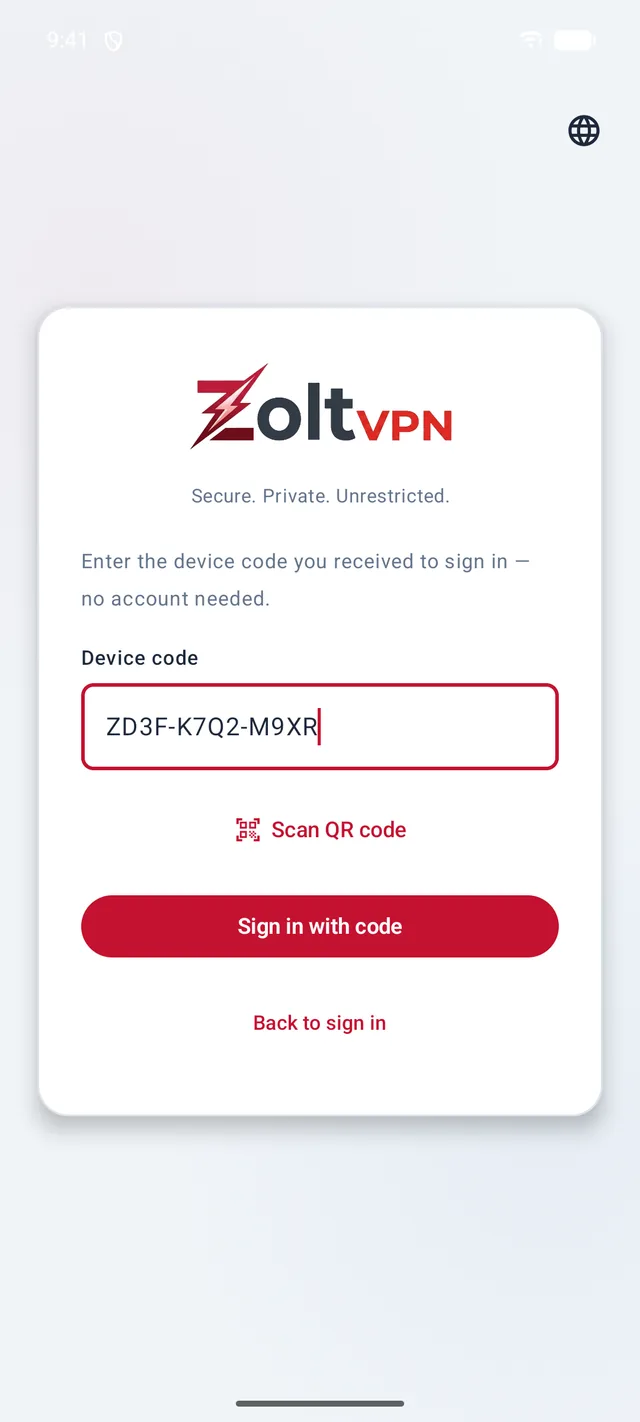
Enter the code and sign in
Type the code and tap Sign in with code. The device now uses your plan and shows up in your Devices list.
- 6
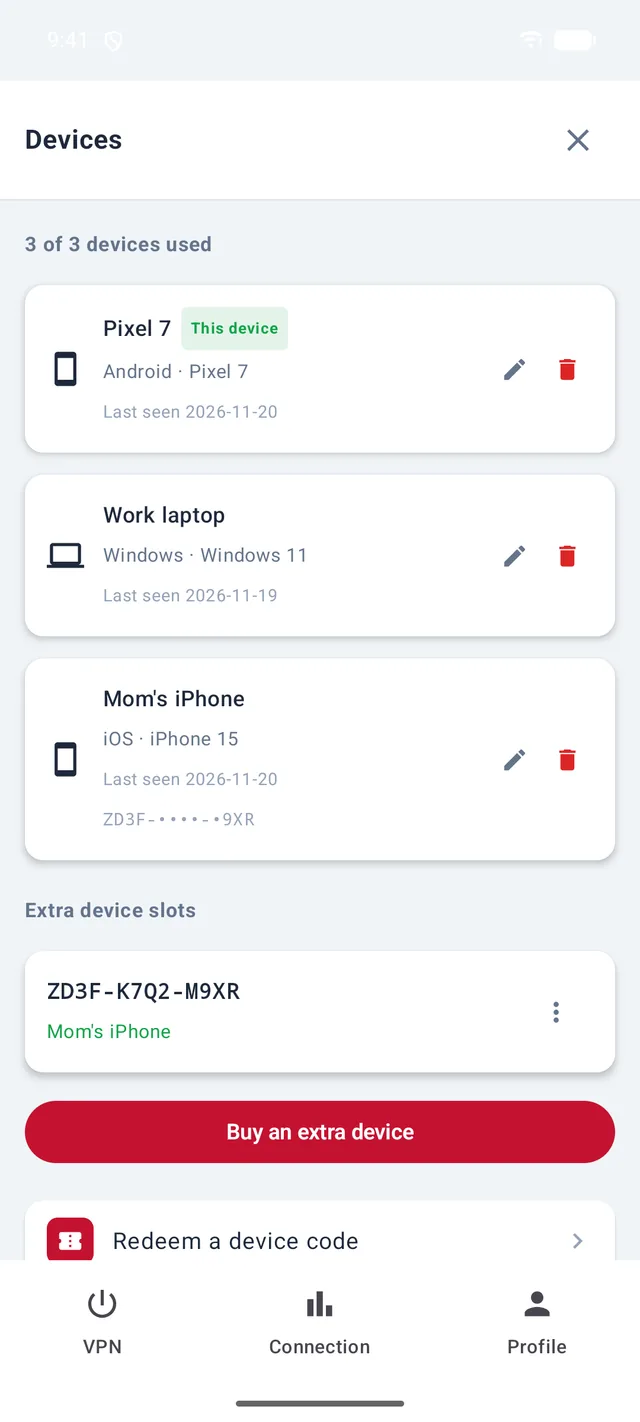
All places used?
When your plan is full, the button changes to Buy an extra device, which opens checkout on our website. Or remove a device you no longer use.
Good to know
- Adding another device of your own? You can also just sign in on it with your email and password.
- On iPhone, iPad and Mac, Devices is in the Profile tab too.
More guides
Still stuck?
Write to us on Telegram — our assistant answers day and night and passes anything it can't solve to our team.