Sign in with a code
Got a ZoltVPN code from a reseller, or from someone sharing their plan with you? Here's how to sign in with just that code — no email and no password.
Narrated walk-through with the same screenshots.
Step by step
Screenshots from the Android app. iPhone, iPad, Mac and Windows look very similar.
- 1
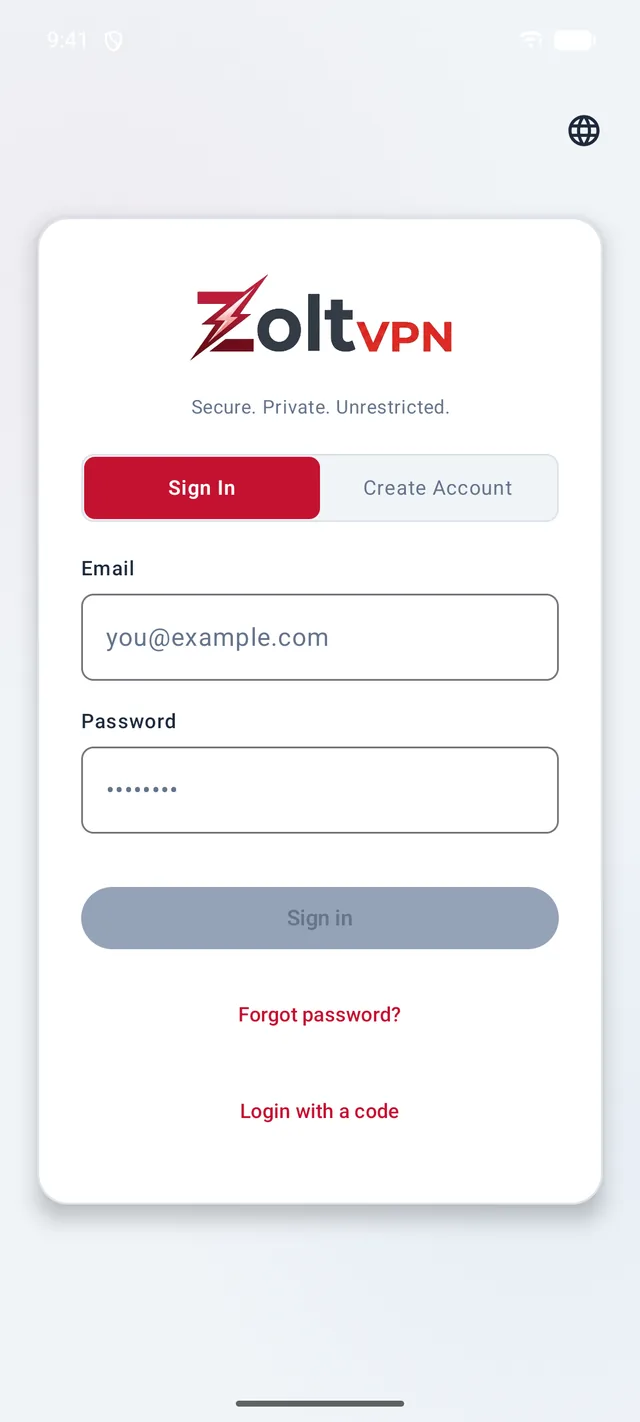
Tap “Login with a code”
Open ZoltVPN. On the sign-in screen, tap Login with a code — it's just below the Sign in button.
- 2
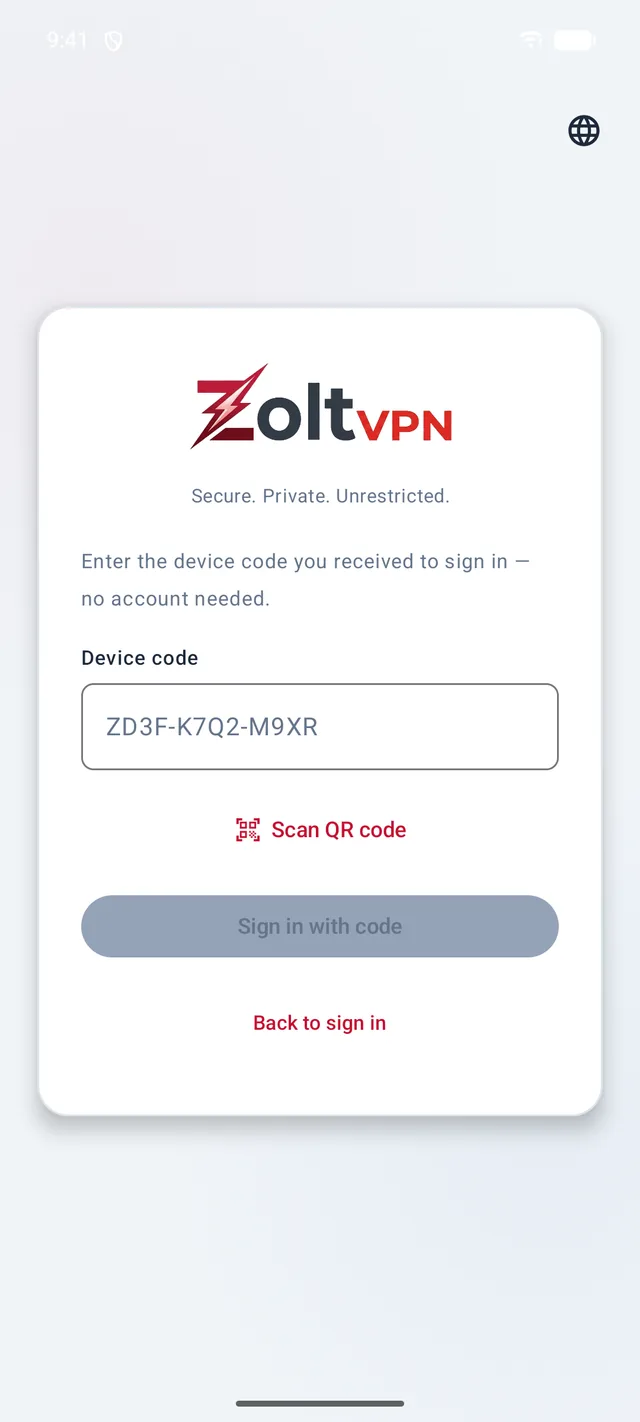
Type the code — or scan it
Type the code exactly as you received it. If you were sent a QR code instead, tap Scan QR code and point your camera at it.
- 3
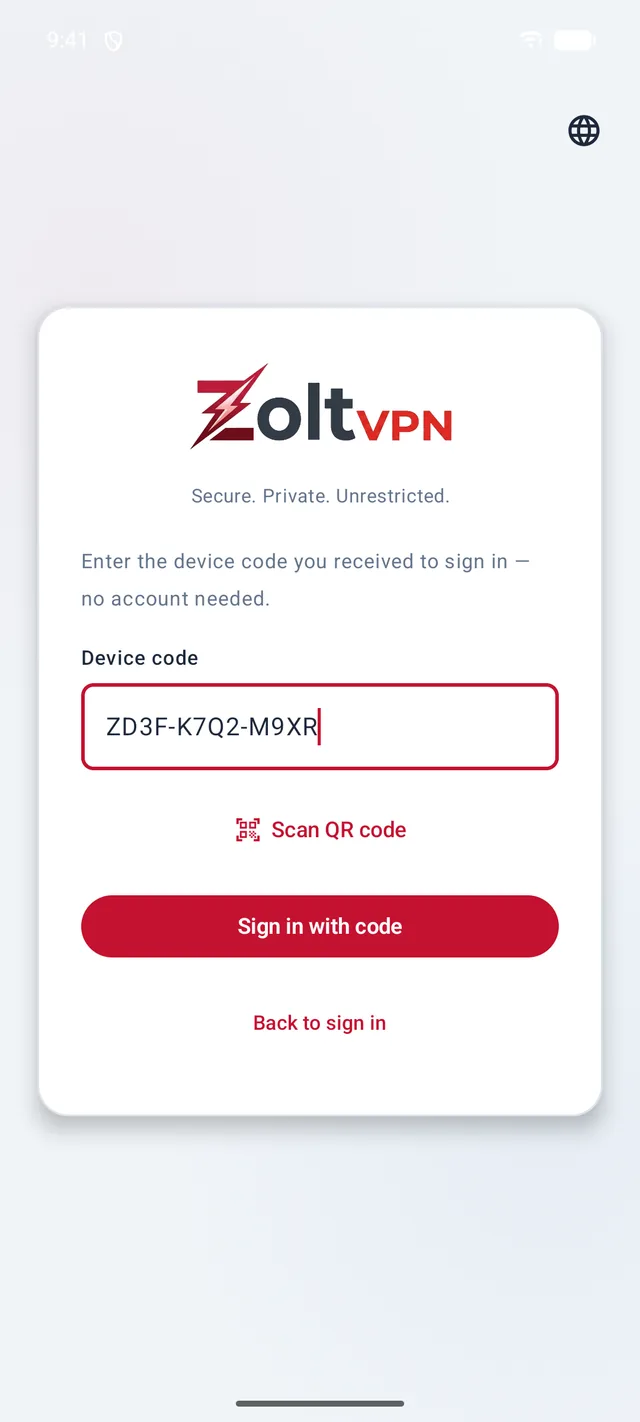
Tap “Sign in with code”
That's it — the app opens on the VPN screen, ready to connect.
- 4
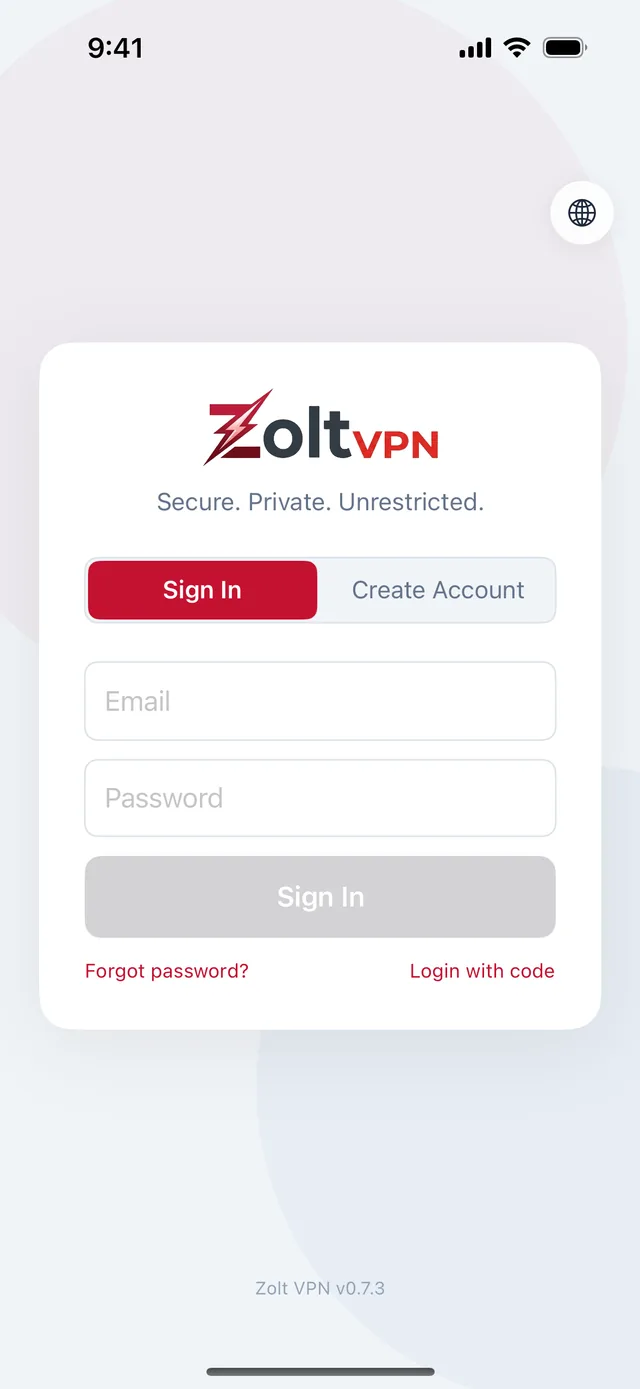
On iPhone, iPad or Mac
Tap Login with code under the password field, then enter your code the same way.
Good to know
- On Windows, click “Use a device code instead” on the sign-in screen.
- A device code signs in one device. To put your plan on another device, share a new code — see “Add a device to your plan”.
More guides
Still stuck?
Write to us on Telegram — our assistant answers day and night and passes anything it can't solve to our team.