Connect to the VPN
Here's how to connect with one tap, and what each colour on the VPN screen means.
Narrated walk-through with the same screenshots.
Step by step
Screenshots from the Android app. iPhone, iPad, Mac and Windows look very similar.
- 1
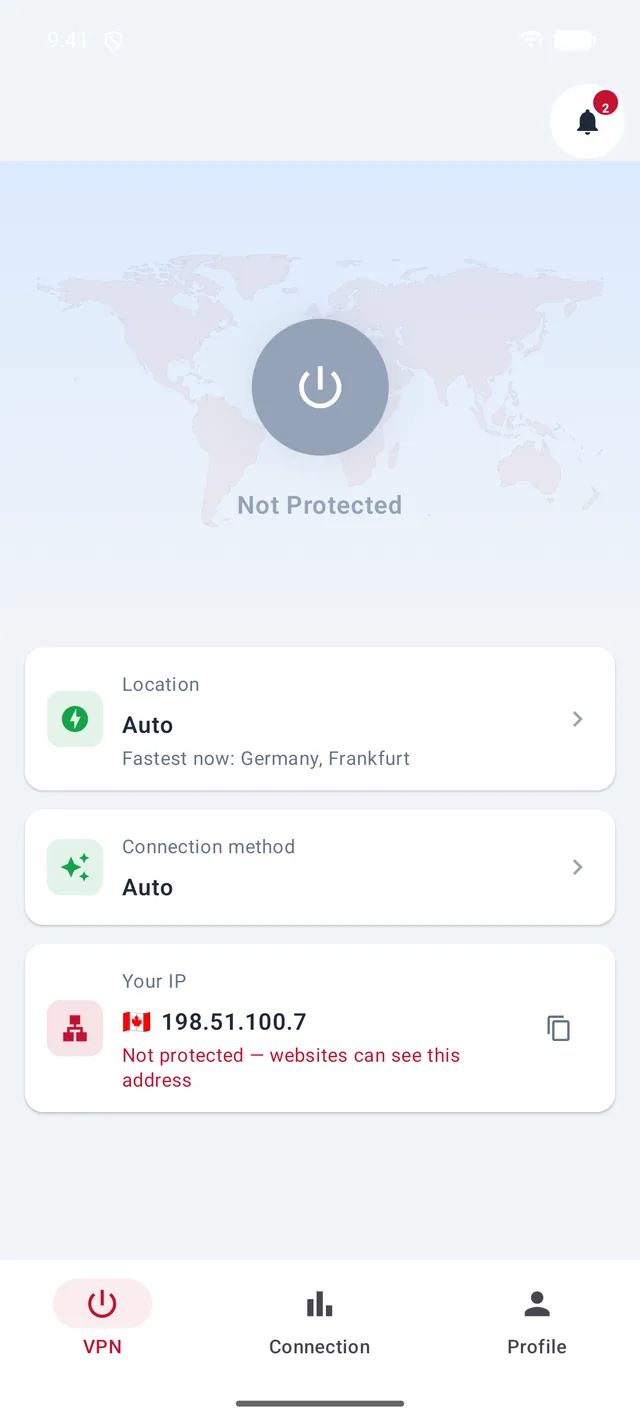
Tap the power button
Grey means you're not protected: websites can see your real IP address — the one shown at the bottom.
- 2
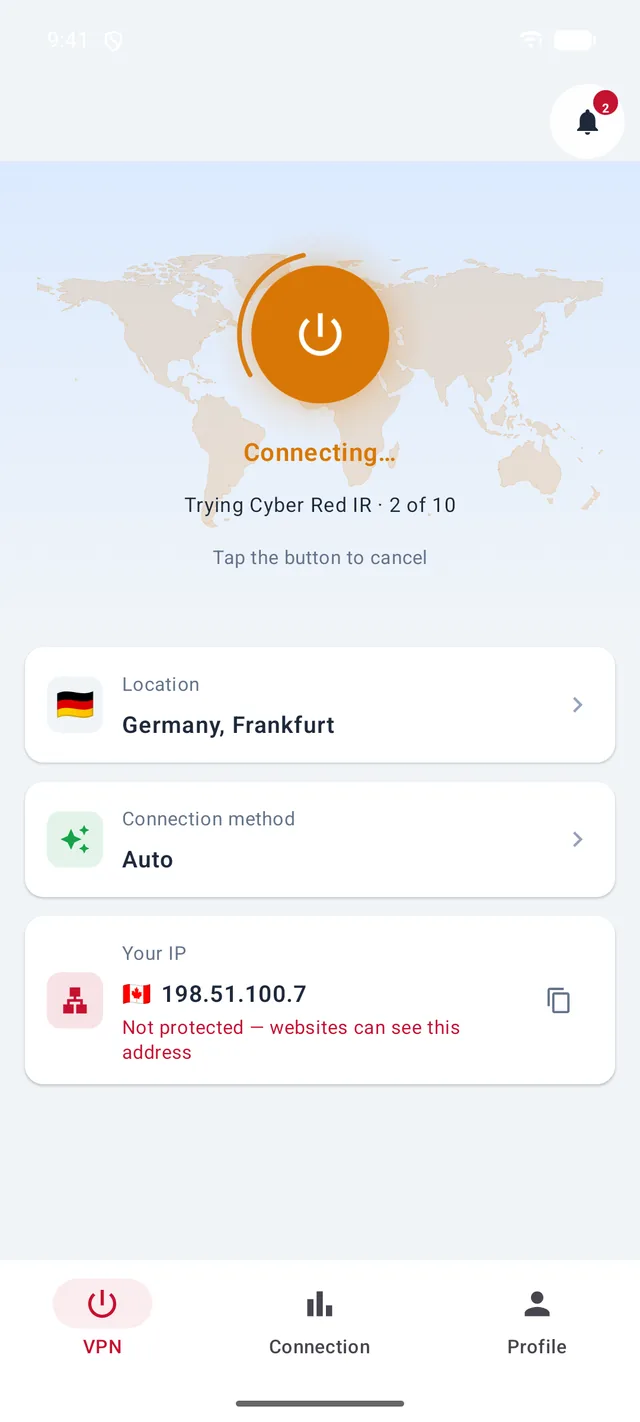
Give it a moment
The button turns orange. With the connection method on Auto, CyberPort AI tries one method after another — here Cyber Red IR, the 2nd of 10 — until one works on your network. Tap the button to cancel.
- 3
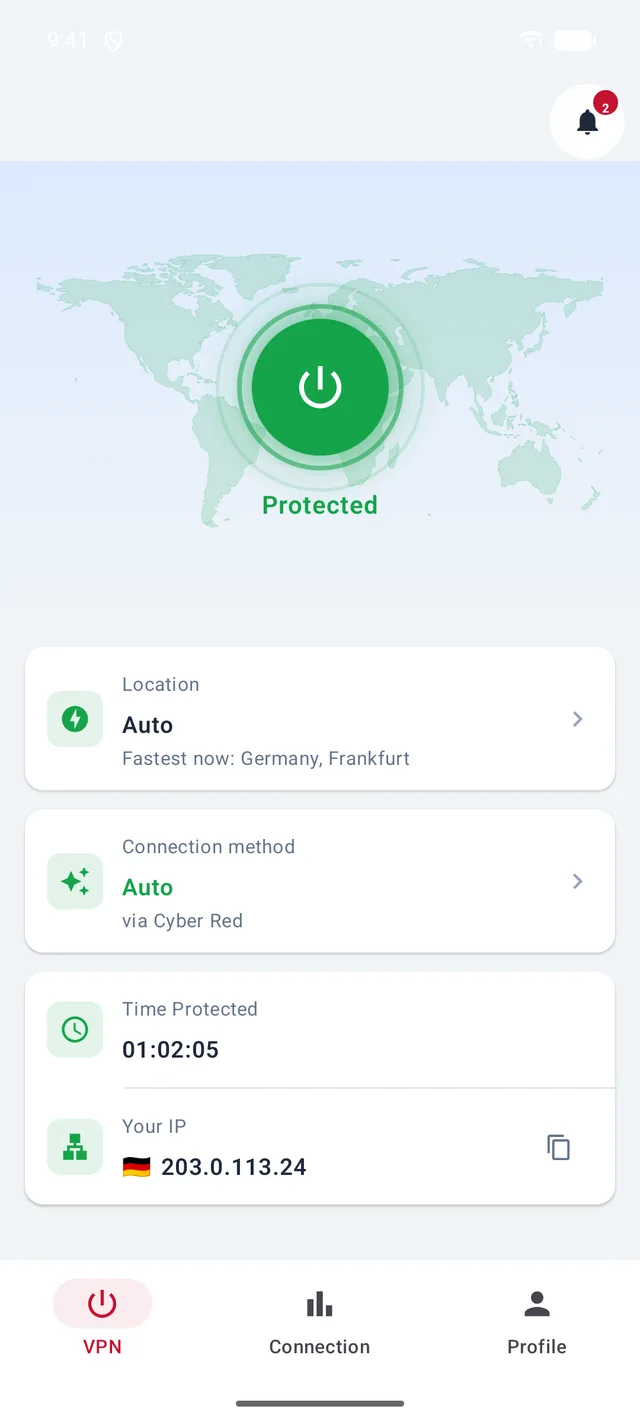
Green means protected
You're connected. Your IP now shows the address of your location, and Time Protected starts counting. Tap the button again to disconnect.
Good to know
- The first time you connect, your phone asks for permission to add a VPN. Allow it — the VPN can't start without it.
- On Windows it works the same way: click the big button in the middle.
More guides
Still stuck?
Write to us on Telegram — our assistant answers day and night and passes anything it can't solve to our team.