Locations, connection methods and Auto
The VPN screen gives you two choices: location, and connection method. Here's what each one does, and how Auto works.
Narrated walk-through with the same screenshots.
Step by step
Screenshots from the Android app. iPhone, iPad, Mac and Windows look very similar.
- 1
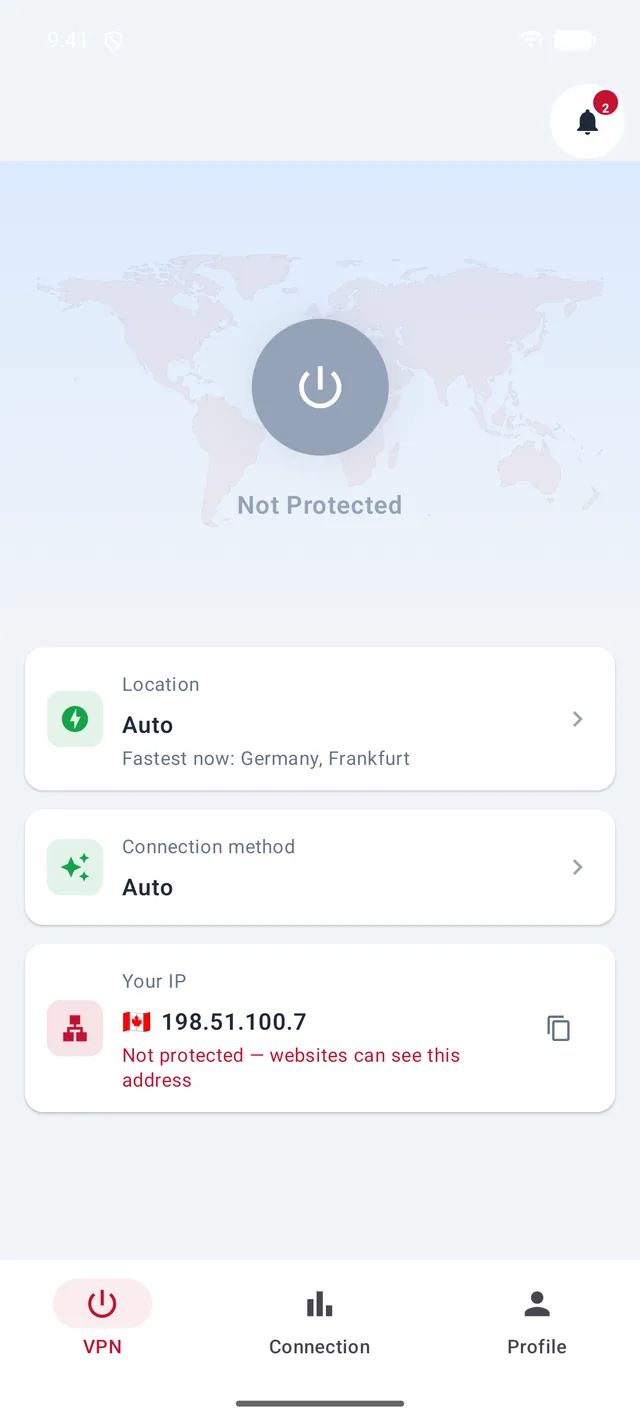
Two choices on the VPN screen
Location is where your traffic comes out. Connection method is how it gets there. Both start on Auto.
- 2
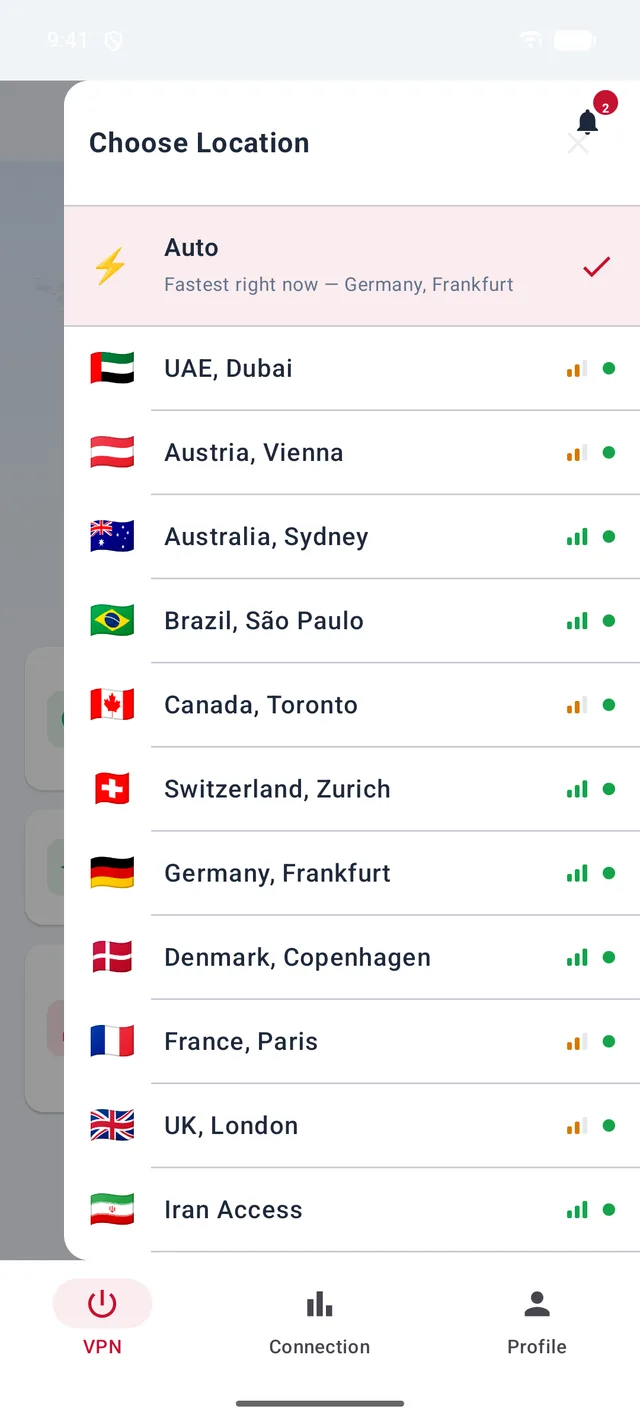
Location: Auto, or pick a city
Auto picks the best location for you right now, based on how busy each server is and how far it is from you. Or tap a city yourself. The bars show how busy a server is: three green bars means it's quiet.
- 3
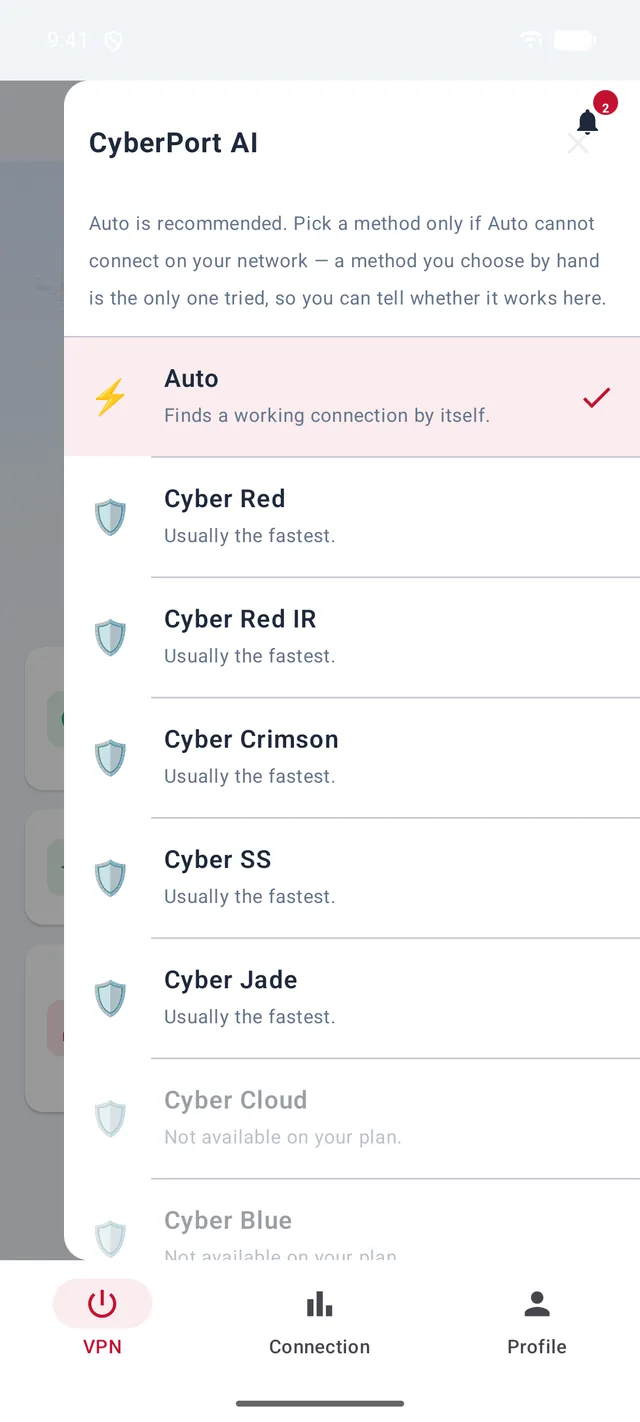
Connection method: leave it on Auto
These are the methods of CyberPort AI, and Auto is the one we recommend. Pick a method by hand only if Auto can't connect on your network — then only that method is tried, so you can see whether it works there. Greyed-out methods aren't part of your plan.
- 4
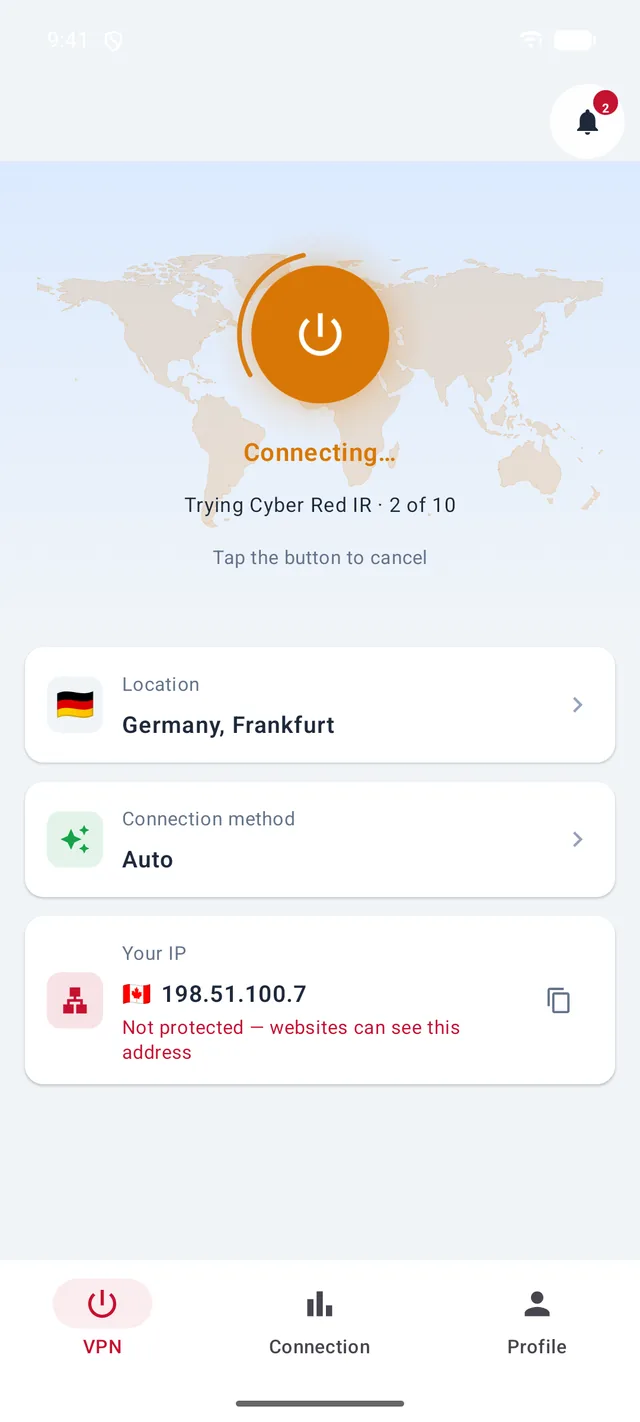
How Auto connects
On Auto, the app tries the methods in turn and keeps the first one that really carries your traffic. If your network blocks one, the next one takes over — you don't have to do anything.
Good to know
- You'll find the same two choices on iPhone, iPad, Mac and Windows.
More guides
Still stuck?
Write to us on Telegram — our assistant answers day and night and passes anything it can't solve to our team.